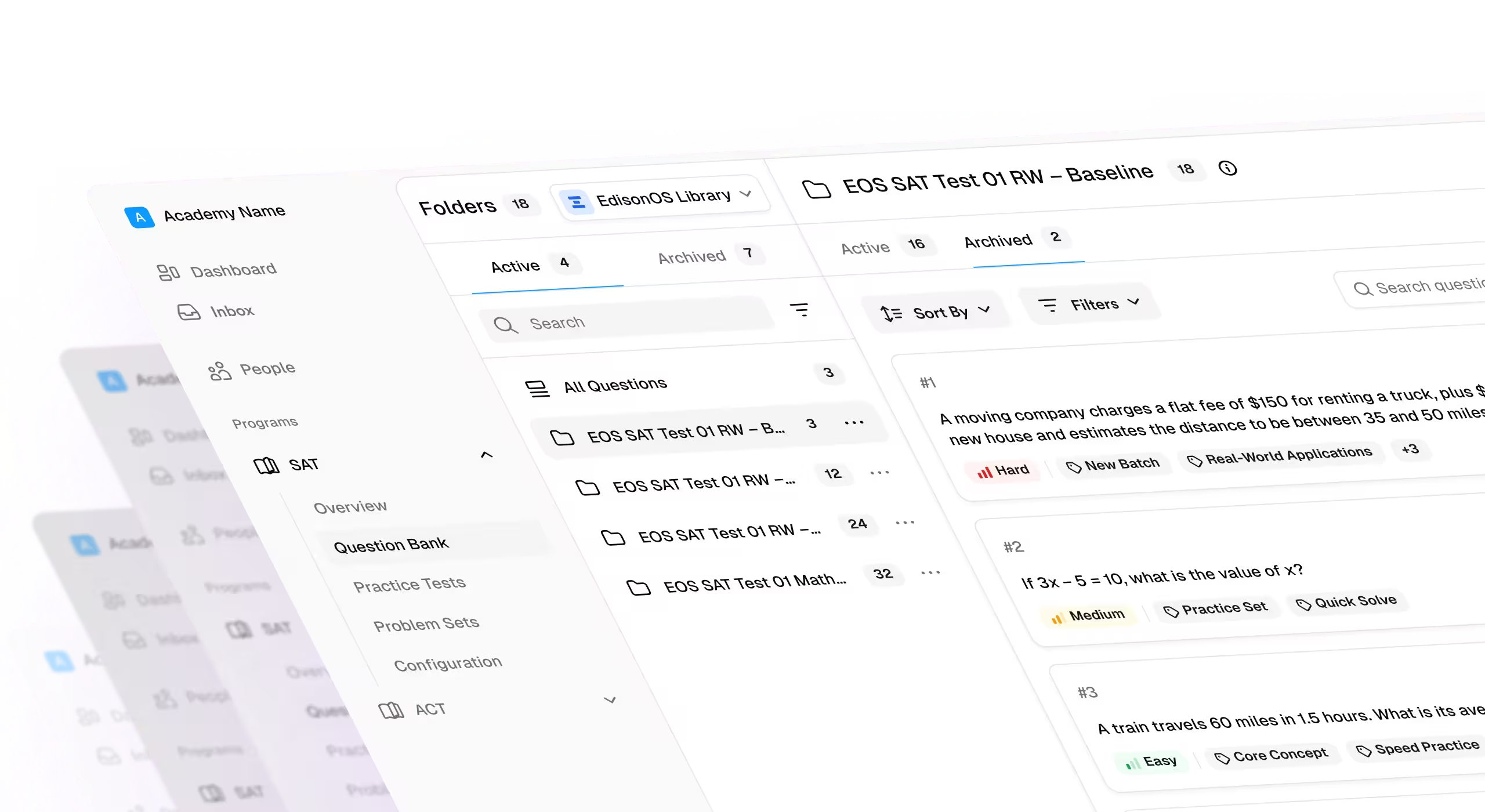
Smarter problem set creation, richer reports, and better student insights
- Create problem sets directly from Question Bank folders.
- Get more insights from practice test and problem set reports.
- Tutors, admins, and linked parents can access Bluebook Insights from Coursework.
- Record official SAT scores on student profiles.
- Unassign tests that haven’t been started and report questions directly from folder previews.
What's new
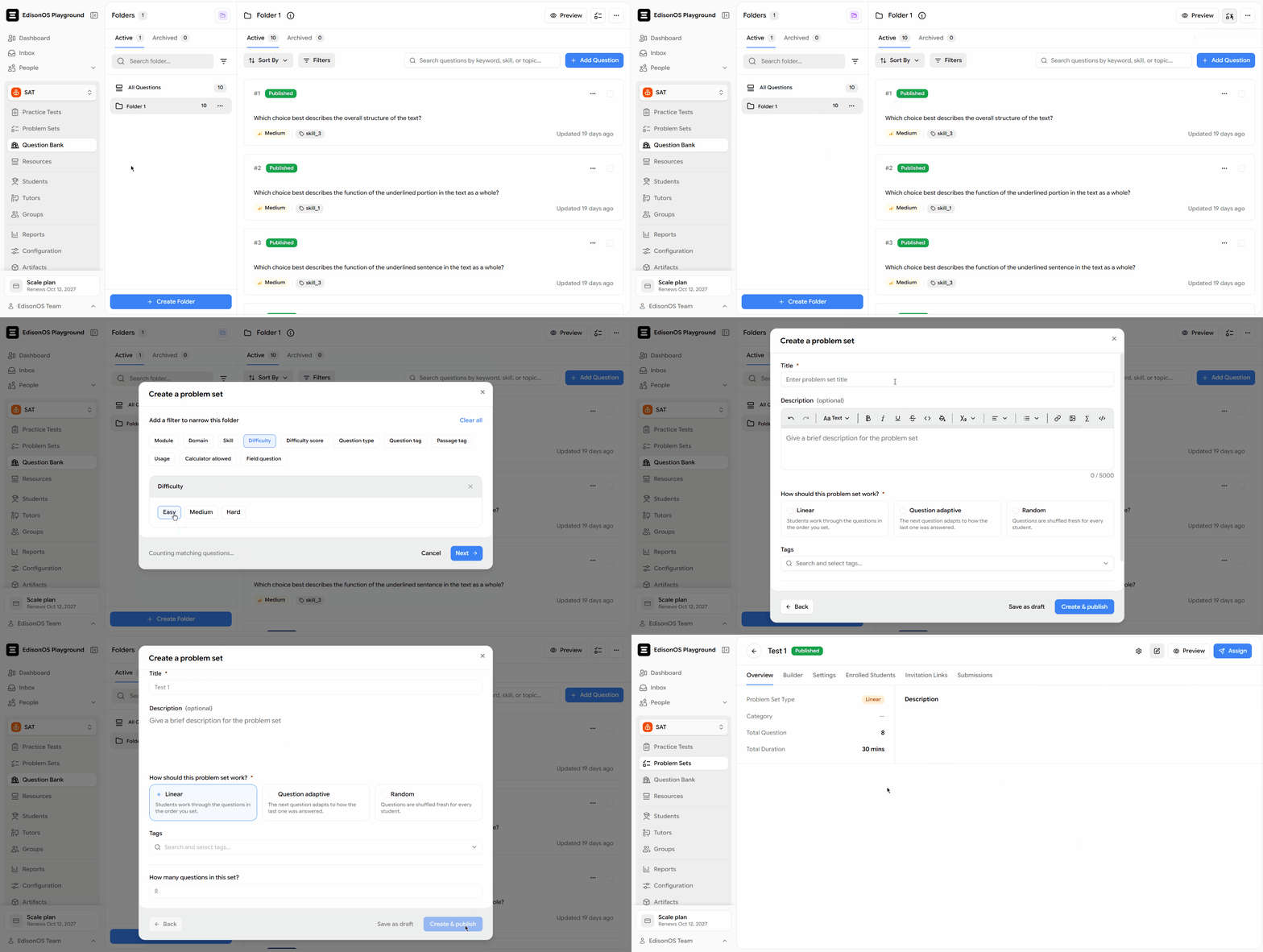
Create problem sets directly from question bank folders
Turn a folder in your own question bank into a problem set in a few clicks. Filter published questions by difficulty, usage, and other program options, with a live question count and quick filter chips to refine your selection.
Once created, open the problem set directly. If creation fails or the folder doesn’t have enough published questions, you’ll see a clear explanation without a partial draft being saved. This option isn’t available for EdisonOS library folders.
More insights in practice test and problem set reports
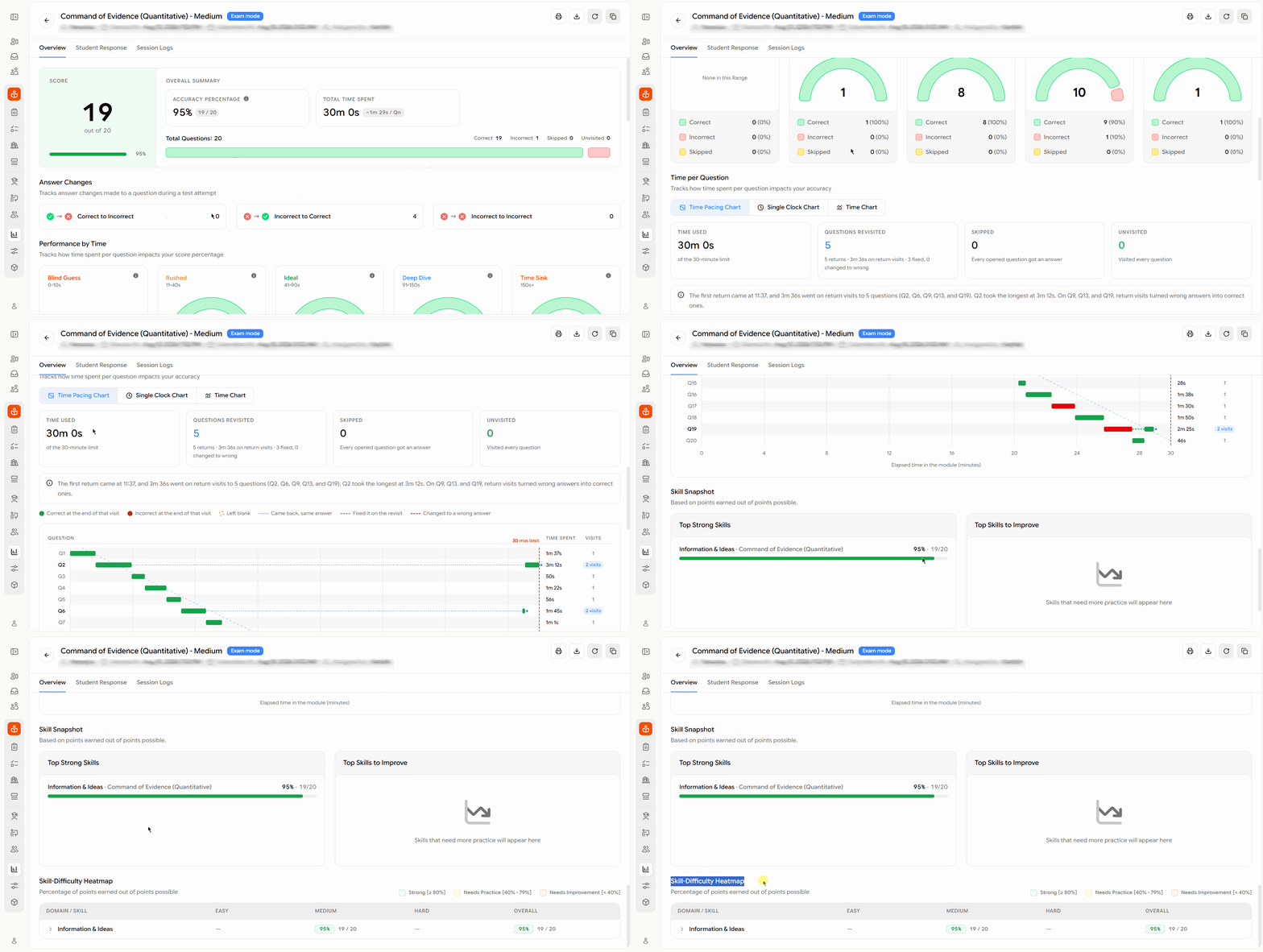
Get a clearer view of student performance with new time-based insights, score comparisons, and skill-level breakdowns.
Problem set reports
- Performance by Time shows how accuracy changes based on the time spent on each question.
- The time-per-question chart helps identify questions where students spent more time or moved through quickly.
- The Skill Snapshot highlights student strengths and areas for improvement.
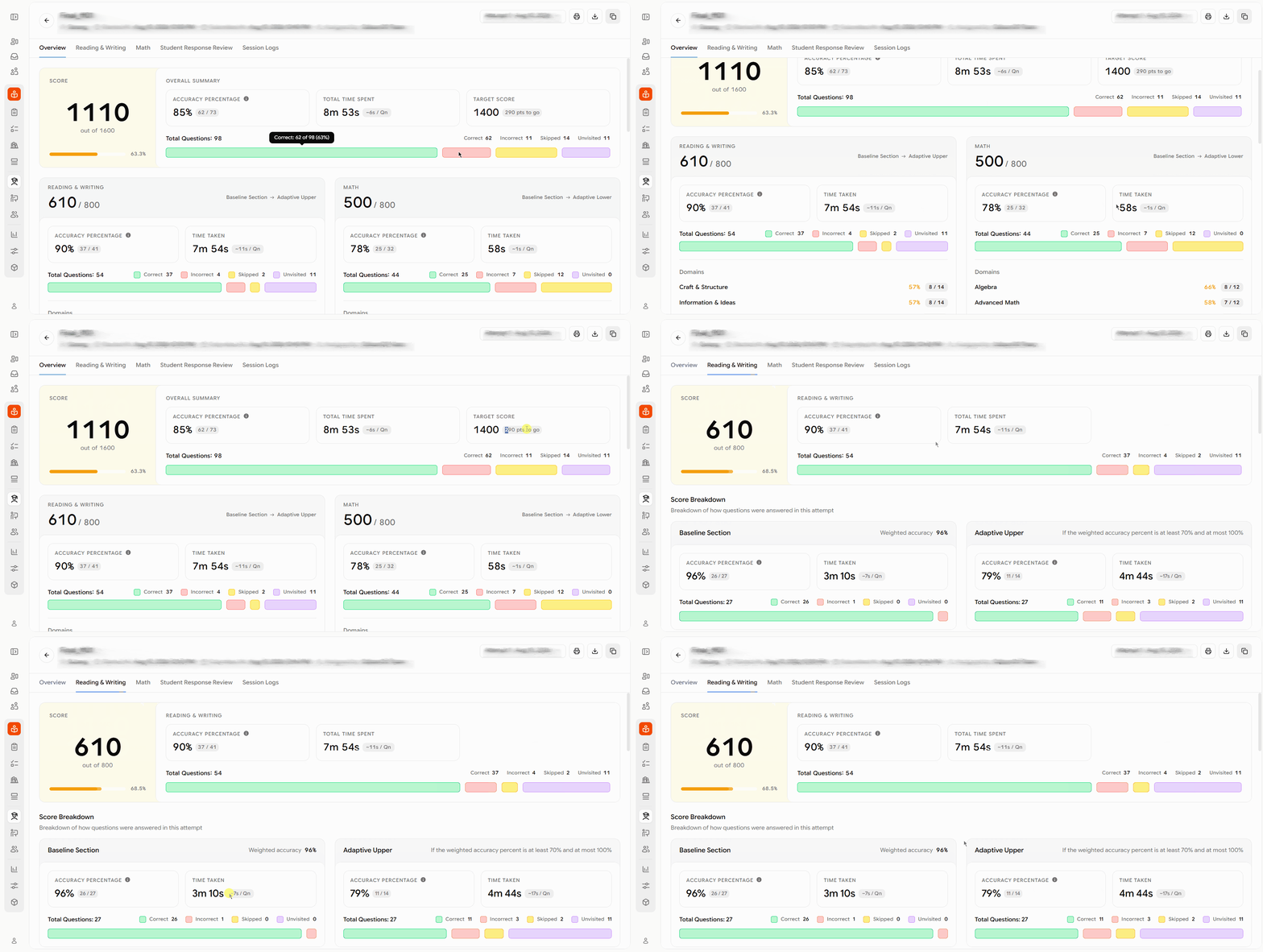
Practice test reports
- Average time per question is now available on summary, module, and difficulty cards.
- The summary card shows how the student's score compares with their target, including how far they are from it or whether they've met or exceeded it.
Access Bluebook Insights from Coursework
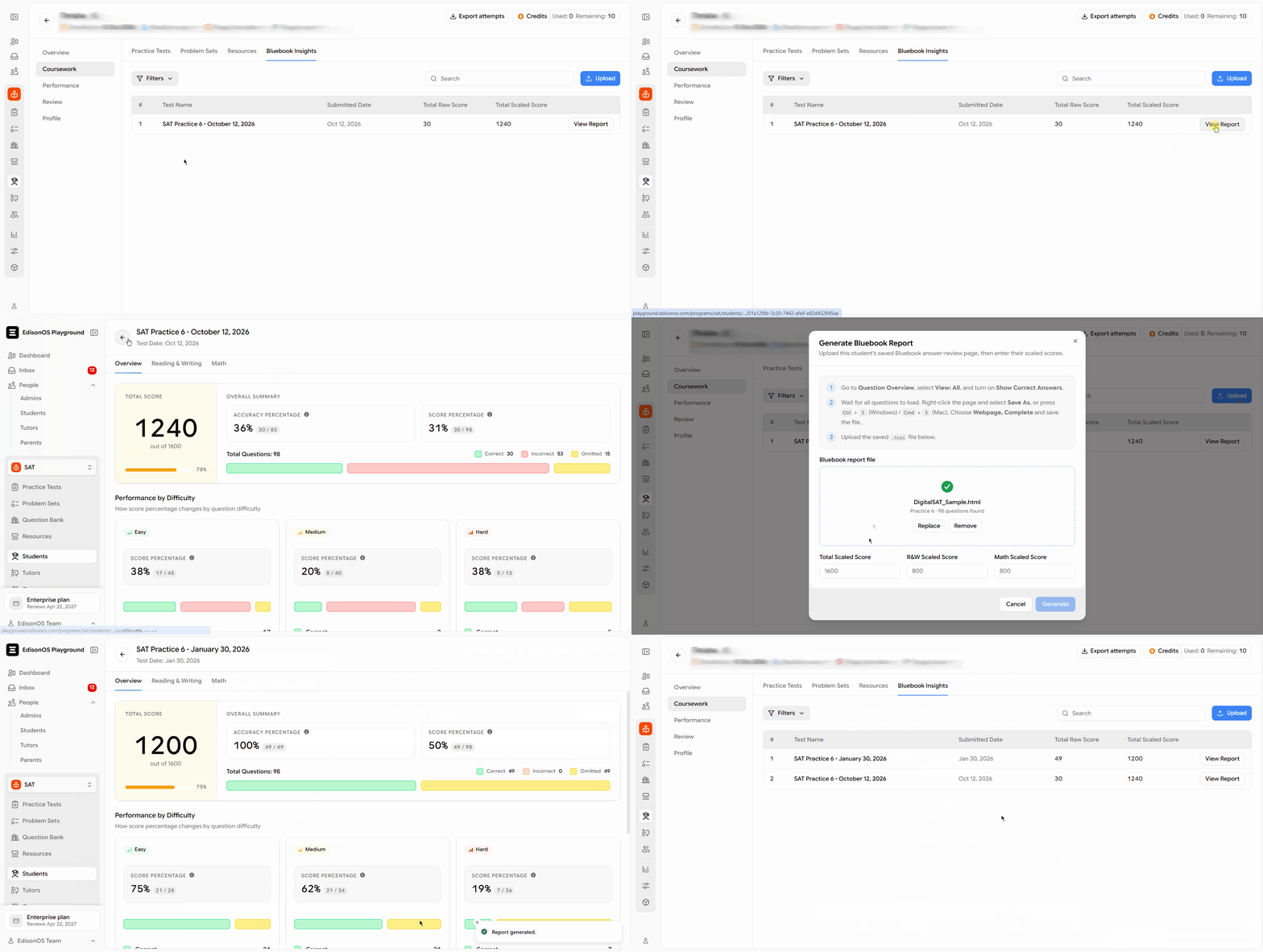
Tutors and admins can now view a student’s Bluebook score reports, upload reports on their behalf, and retry failed uploads without reselecting the file. Linked parents can also view the reports with read-only access.
Record official SAT scores on student profiles
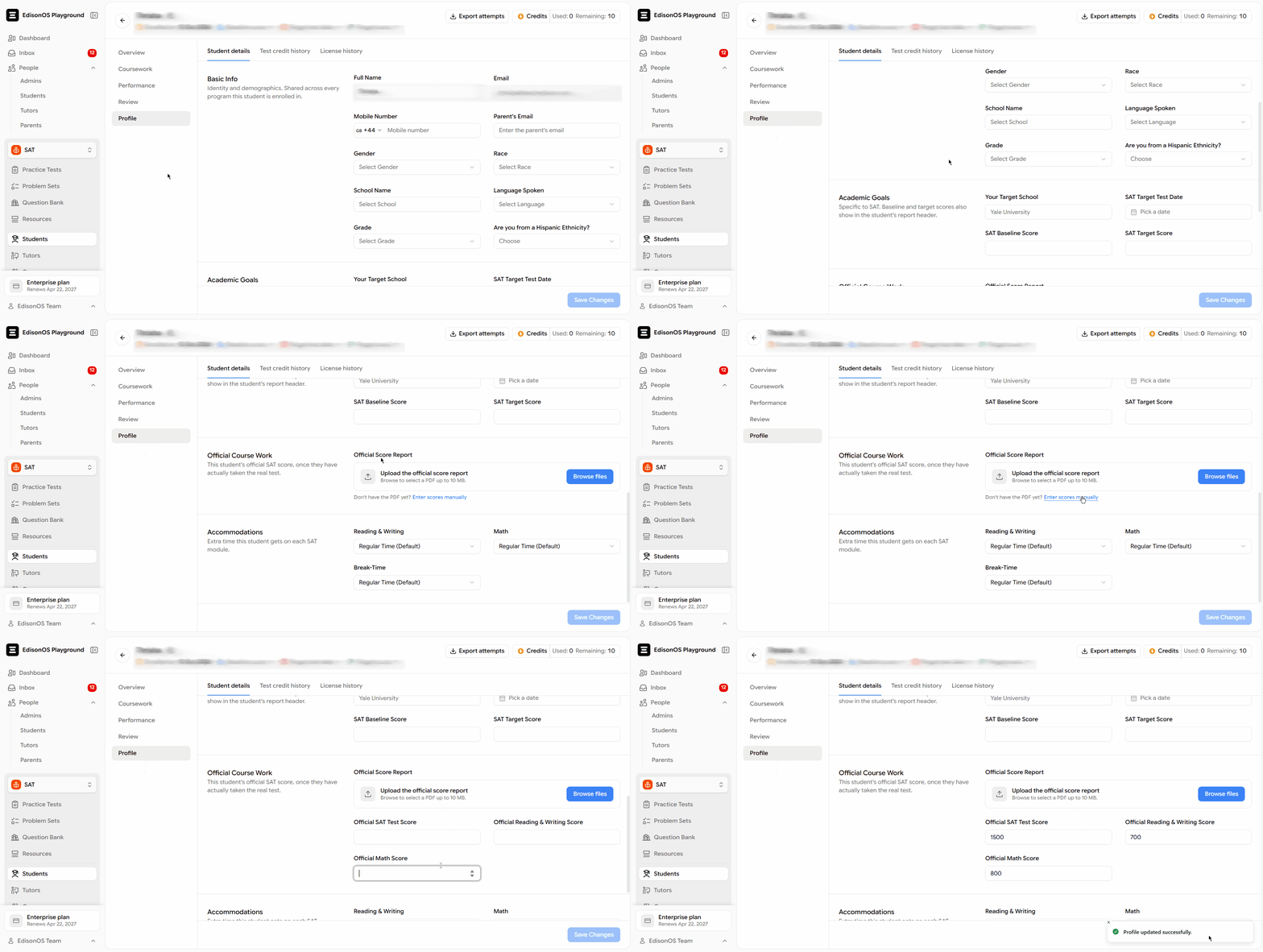
Add a student’s official SAT scores to the new Official Course Work section of their profile, alongside their practice results. Upload a score report PDF to automatically populate total and section scores, or enter scores manually with a module-wise breakdown. You can view, replace, or remove the report at any time.
Unassign tests that haven’t been started
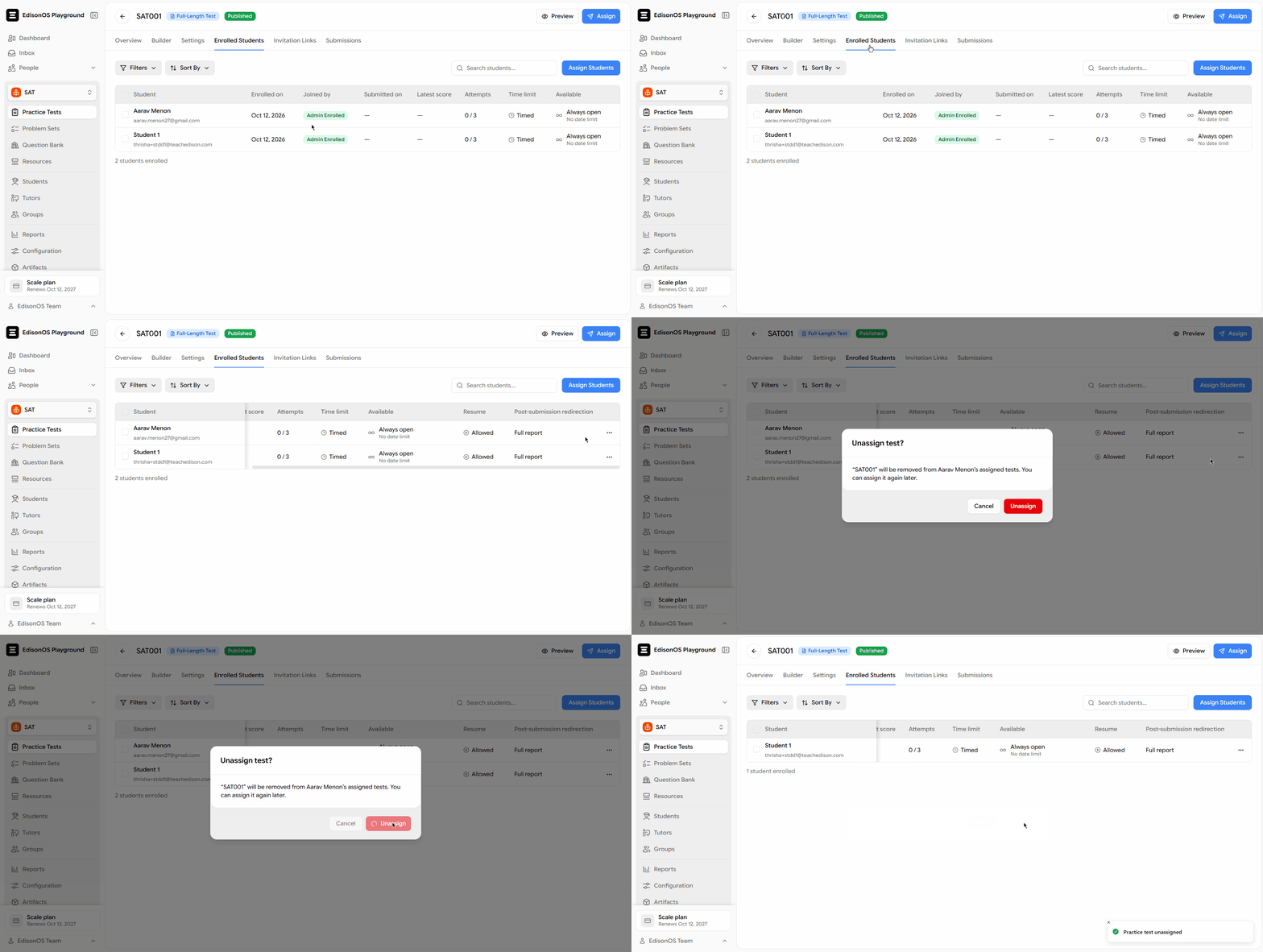
Accidentally assigned a test to the wrong student? Open the test’s Enrolled Students tab and select Unassign next to the student’s name. You can unassign a test only if the student hasn’t started it, and assign it again later.
Report questions directly from folder previews
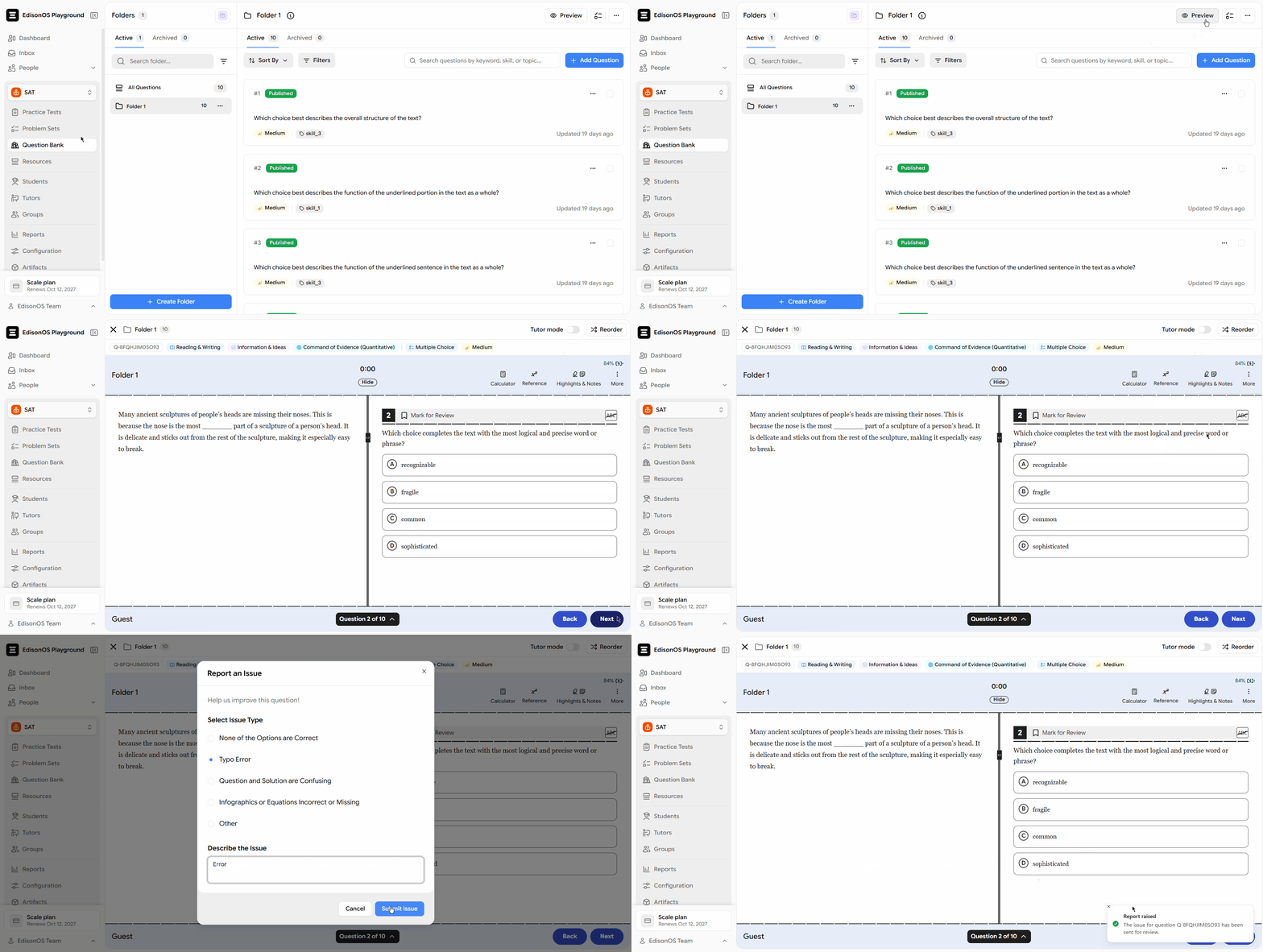
Flag a published question while previewing a folder by opening its menu and selecting Report question. This works for folders in both your own library and the EdisonOS library.
Other Improvements
- Students can continue a test in another tab or on another device without overwriting their answers.
- The whiteboard now supports Fit to question, keyboard shortcuts to save, reopening where you left off, and warnings before closing unsaved work.
- Problem set and practice test previews now open in full screen by default.
- AI Extractor extractions can now be renamed after submission.
- Export test attempts as CSV for any date range, including the credits or license used for each attempt.
- Group reports now support Previous and Next navigation and preserve your place when you reload or share the link.
Not sure where to start? Let's figure it out together.