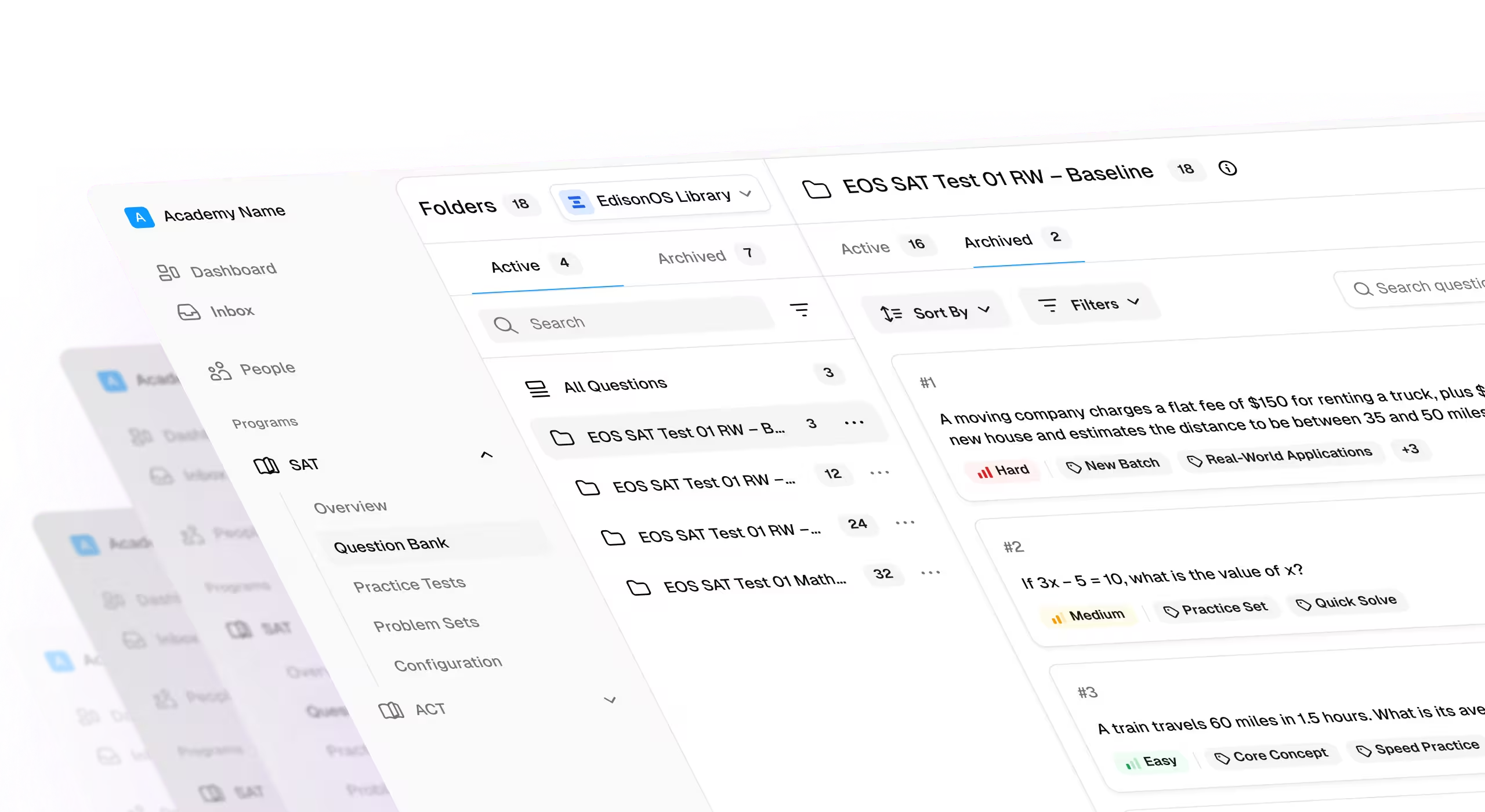
- The digital SAT test interface is the on-screen environment students use to take the exam through the College Board's Bluebook app, complete with built-in navigation and testing tools.
- The interface includes seven key tools, including the Desmos graphing calculator, annotation tools, answer elimination, mark for review, the countdown timer, reference sheet, and question navigation menu.
- Knowing how to use these tools efficiently can reduce test-day anxiety, improve pacing, and help students avoid losing time on unfamiliar interface features.
- Students can move freely between questions within a module, but once a module ends, they cannot return to it.
- Practicing in a Bluebook-like environment before test day helps students build interface familiarity alongside content knowledge, making practice more realistic and effective.
What Is the Digital SAT Test Interface?
The digital SAT test interface is the on-screen testing environment used to take the College Board's Digital SAT through the Bluebook app. It includes the screen layout, navigation controls, built-in tools such as the Desmos calculator and annotation features, and everything students interact with while completing the exam.
The interface, delivered through the Bluebook app, is designed to make testing more efficient while giving students access to tools that were never available on the paper SAT. Features such as the Desmos graphing calculator, answer elimination, highlighting, question flagging, and a digital reference sheet can all save time when used effectively.
What Does the Screen Look Like Inside the Digital SAT?
Before taking your first Digital SAT Practice Test, it's helpful to know what you'll actually see on screen. The digital SAT test interface is designed to keep the passage, question, and testing tools accessible without feeling cluttered. While the Reading & Writing and Math sections include slightly different tools, the overall layout remains consistent throughout the exam.
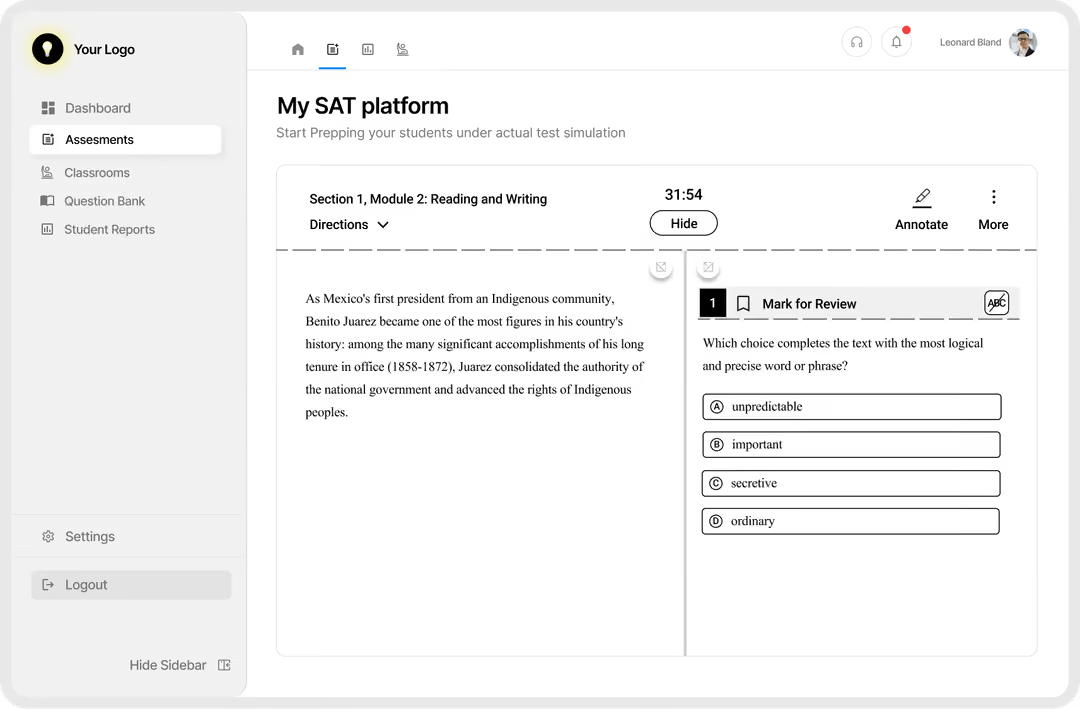
Here's what you'll typically see on screen:
Once you are comfortable with the screen layout, the next step is learning how to use each built-in tool strategically. That's where many students gain an edge, not by discovering the tools on test day, but by practicing them until they become second nature.
The 7 Built-In Tools Inside the Digital SAT Interface and How to Actually Use Them
The digital SAT test interface includes several built-in tools designed to help students navigate the exam more efficiently. Simply knowing these tools exist isn't enough. The biggest advantage comes from understanding when to use them and practicing with them before test day.
The table below gives a quick overview, followed by a detailed explanation of each tool and the strategies that can help you save time and avoid common mistakes.
1. Desmos Graphing Calculator
The Desmos graphing calculator is built directly into the Math section of the digital SAT, so you never have to switch between applications or rely solely on a handheld calculator. It combines a scientific calculator with graphing capabilities, making it one of the most valuable tools available during the test.
When should you use Desmos?
Desmos is especially helpful for:
- Graphing linear, quadratic, exponential, and other functions
- Solving systems of equations by finding intersection points
- Checking whether a calculated answer matches a graph
- Testing answer choices instead of solving lengthy equations by hand
Don't assume every Math question requires Desmos. Many problems can be solved more quickly with mental math or simple algebra. The goal is not to use the calculator as often as possible, but to recognize when it can save you time.
During practice sessions, students should be challenged to solve a problem both manually and with Desmos. Over time, they will develop a better instinct for when the calculator speeds them up and when it slows them down.
2. Mark for Review
The Mark for Review feature lets you flag questions that you want to revisit before submitting the current module. Instead of spending too much time on a difficult problem, you can make your best guess, mark it, and return later if time allows.
When should you use it?
Use Mark for Review when you:
- Narrow the answers down to two choices but aren't completely sure
- Need extra time to solve a calculation-heavy Math problem
- Want to revisit a Reading & Writing question after finishing the passage
Teach students to never leave a question unanswered. Make an educated guess first, then flag it for review. Since there is no penalty for incorrect answers, this strategy maximizes scoring opportunities.
3. Answer Choice Elimination Tool
The Answer Choice Elimination tool helps you visually remove answer choices you've ruled out. It's especially useful on Reading & Writing questions where two answers seem plausible.
To activate it, click the ABC strikethrough icon in the toolbar. Once enabled, small X icons appear next to every answer choice. Click an X to cross out an option.
When should you use it?
This tool works best when:
- You've confidently eliminated one or two choices
- You're comparing two similar answer options
- You're making an educated guess on a difficult question
Encourage students to use the elimination tool instead of trying to keep possible answers in their head. Reducing cognitive load can improve decision-making, especially later in the test.
4. Annotation and Highlighting Tools
The Reading & Writing section includes built-in annotation and highlighting tools that allow you to interact directly with passages.
When should you use annotations?
Annotations can help you:
- Highlight the author's main claim
- Mark supporting evidence
- Identify transition words and contrasting ideas
- Keep track of important details in longer passages
Rather than rereading the entire passage, you can quickly return to the information you've already marked.
Create a simple color-coding system during practice. For example, use yellow for the main idea, blue for evidence, and green for contrasting viewpoints. Consistency makes retrieval much faster under timed conditions.
5. Digital Countdown Timer
Every module includes a countdown timer that shows exactly how much time remains.
If constantly watching the clock increases your anxiety, you can temporarily hide the timer. It automatically reappears when five minutes remain, giving you a final warning before time expires.
How should you use the timer?
Avoid checking it after every question. Instead, glance at it periodically to make sure you're staying on pace.
For example:
- Early in the module, focus on building momentum.
- Midway through, check whether you're progressing as expected.
- During the final few minutes, prioritize completing every remaining question rather than spending too long on one difficult problem.
Students who constantly monitor the timer often lose focus and create unnecessary pressure.
Practice full-length modules with the timer visible and hidden. Some students perform noticeably better when they aren't distracted by the countdown.
6. Math Reference Sheet
The Math section includes a built-in reference sheet containing commonly used geometry formulas.
Have students solve a few geometry questions using only the reference sheet. This helps them build familiarity without becoming overly dependent on it.
7. Question Navigation Menu
The Question Navigation Menu gives you a complete overview of every question in the current module.
Select the question number at the bottom of the screen to open the menu. You'll see which questions are:
- Answered
- Unanswered
- Marked for review
From there, you can jump directly to any question within the module instead of clicking through one by one.
Can you go back on the digital SAT?
Yes, but only within the current module.
You can freely move between questions before submitting a module. Once you finish a module and move to the next one, you cannot return to the previous module.
This makes it important to check the Question Navigation Menu before submitting. It's an easy way to catch unanswered or flagged questions while you still have time.
Encourage students to spend the final minute of each module reviewing the navigation menu. It's one of the fastest ways to make sure no questions have been accidentally skipped.
Why Interface Familiarity Directly Impacts Your Score
Most students spend weeks reviewing algebra, grammar, and reading strategies before the SAT. Far fewer spend time practicing the interface they'll use on test day. That's a missed opportunity because content knowledge and interface familiarity are two different skills.
Practicing in a realistic Digital SAT interface helps you:
- Build confidence before test day
- Use built-in tools without hesitation
- Spend less mental energy navigating the platform
- Maintain better pacing throughout each module
- Reduce anxiety caused by unfamiliar technology
Don't wait until students take a full-length practice test to introduce the interface. Spend one session walking through every built-in tool and let students practice using each one before timing becomes a factor.
The goal is to make every interaction with the interface automatic. By test day, students shouldn't be thinking about where the calculator is or how to highlight text. Their full attention should be on answering questions accurately and efficiently.
If you want to practice all seven Digital SAT tools before test day, EdisonOS recreates the Digital SAT experience with a Bluebook-like interface, allowing students to practice using the Desmos calculator, annotation tools, answer elimination, mark for review, the reference sheet, and question navigation in a realistic testing environment. It's an easy way to build interface confidence before taking the official exam.
How to Practice in a Realistic Digital SAT Interface Before Test Day
Getting comfortable with the digital SAT test interface doesn't happen by accident. Like any other test-taking skill, it improves with deliberate practice. The goal isn't simply to complete more questions, but to make using the interface feel automatic so you can focus entirely on solving problems on test day.
Here's a practical three-step approach.
1. Practice in Bluebook
Use the official Bluebook app to become familiar with the interface and experience real test conditions. Since official practice tests are limited, save a few for later in your preparation.
2. Continue in a Bluebook-like environment
After using the official tests, practice in a platform that mirrors the Digital SAT interface and includes the same tools. EdisonOS lets students continue building interface familiarity while giving tutors access to analytics and homework management.
3. Practice each tool deliberately
Don't wait until full-length mock tests to use the interface. Spend time learning the calculator, highlighting, question navigation, and mark-for-review features individually so they become second nature.
Practice the Digital SAT with a Bluebook-Like Interface
Reading about the Digital SAT interface is a great first step, but the best way to build confidence is to use it yourself.
EdisonOS gives students and tutors access to a Bluebook-like testing environment complete with all seven built-in SAT tools, 22 adaptive Digital SAT practice tests, 3,700+ expert-vetted questions, detailed performance analytics, homework management, and student progress tracking.
Start your free EdisonOS trial today and experience realistic Digital SAT practice before test day.
The Bottom Line
The Digital SAT is not just a paper test moved onto a computer. Its interface introduces a new layer of test-taking skills that students need to develop alongside their math, reading, and writing knowledge.
Understanding how to use tools like the Desmos graphing calculator, answer elimination, highlighting, the question navigation menu, and the built-in reference sheet can make your testing experience smoother and more efficient. More importantly, practicing these tools before test day helps reduce unnecessary stress and allows you to focus on answering questions instead of figuring out the software.
While the official Bluebook app is essential for experiencing the real exam, its practice tests are limited. Continuing your preparation in a Bluebook-like environment gives you more opportunities to build confidence without using up those official resources.
If you are looking for realistic Digital SAT practice, EdisonOS offers a Bluebook-like interface with all seven built-in SAT tools, adaptive practice tests, detailed performance analytics, homework management, and tutor-friendly reporting. Whether you're preparing on your own or working with a tutor, you can build interface confidence alongside content mastery.
Start your free EdisonOS trial today and experience Digital SAT practice that prepares you for both the questions and the testing environment.
Frequently Asked Questions
.svg)



.png)

.avif)